When you accept a term sheet in GoDoor, your quote becomes a deal and its application opens: one page listing the documents the lender needs, each with its own button to add it. It is where you send your schedule of properties, your driver's license, the signed credit authorization and the rest, and where you can see what is still missing.
GoDoor's app is open by invitation while it is in early access, so this guide is for people who already have an account and a deal.
Where to find your application
Right after you accept a term sheet, the term sheet page says what you accepted and shows Go to the application. Any time after that, open 3. Deals in the sidebar, where the deal sits under Application, and choose its row.
The deal opens as a full-screen sheet on its overview: the property on the left, the journey from research to closing on the right. Press the Application card, or the Upload your documents link inside it.
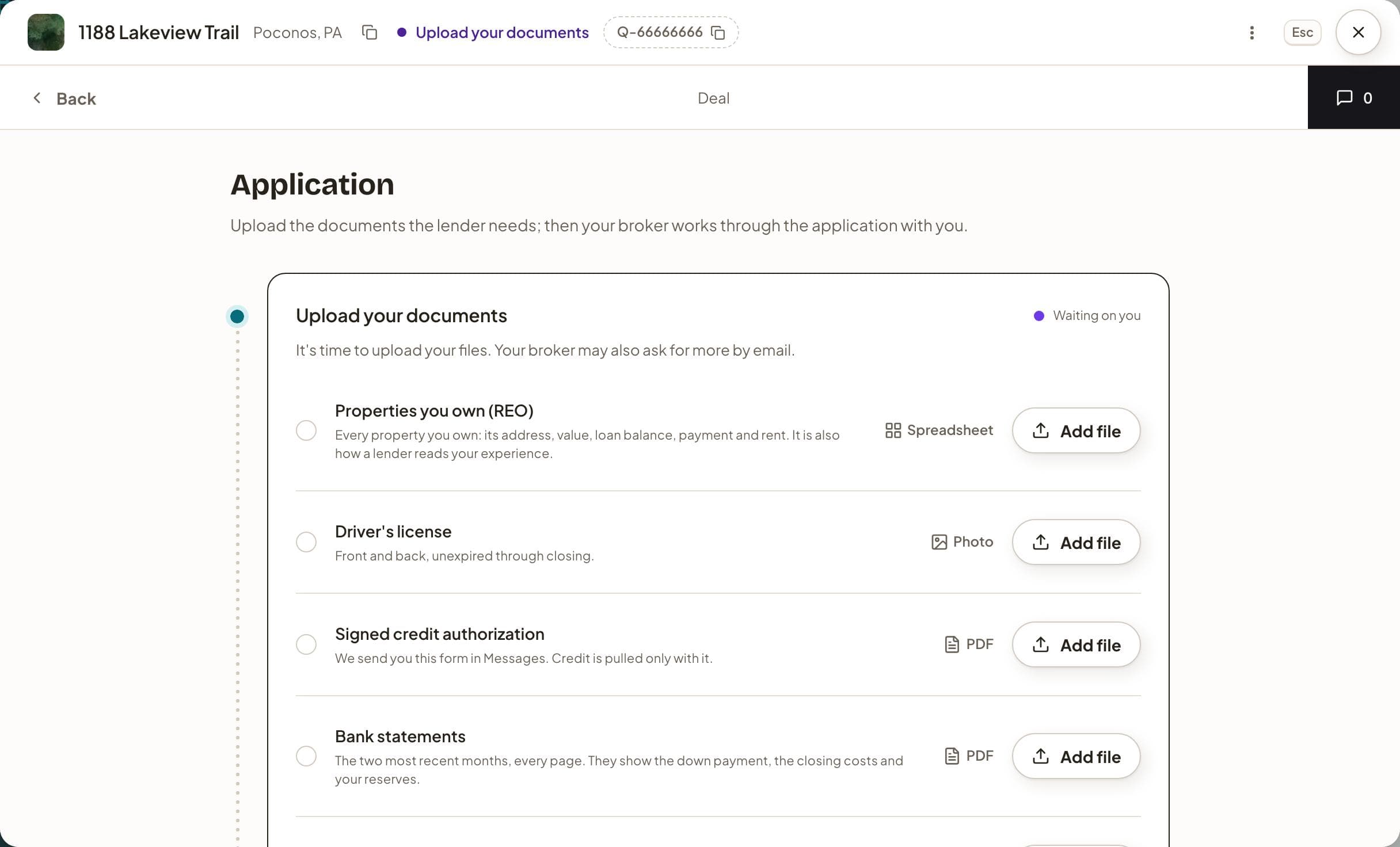
The bar across the top stays the same on every page of the deal: the address and the town, where the deal stands in words (here, "Upload your documents"), and the quote's ID, which copies when you press it. The row under it has Back on the deal's pages, which returns to the overview (on the overview itself it reads Deals), and the messages tab at the far right.
What the Application page shows
The page is headed Application, with one line under it: upload the documents the lender needs, then your broker works through the application with you. Below it are two steps on a dotted line.
The first, Upload your documents, reads "Waiting on you". Each request is a row: its name, a line on what to send, the preferred format (PDF, Photo, Spreadsheet or Any file) and an Add file button. A request that only applies to some deals carries a green If applicable tag, and a long list can be split under headings. The last row, Anything else, takes any other file for your loan.
The second, With your broker, is greyed and marked "Ahead" until your broker moves the deal on. Its outline says how that part usually goes: your broker goes through your documents with you and asks for anything else the lender needs, usually by email, then registers your file with the lender.
What your deal asks for
Every deal starts from the lender's list, and only the items that apply to your deal show. This is the starting list, before a lender's own changes or anything your broker adds:
| Request | Preferred format | Asked on |
|---|---|---|
| Properties you own (REO) | Spreadsheet | Every deal |
| Driver's license | Photo | Every deal |
| Signed credit authorization | Every deal | |
| Bank statements | Every deal | |
| Purchase contract | A purchase | |
| Mortgage statement | A refinance | |
| LLC documents | Borrowing through an LLC | |
| Rental history | Spreadsheet | A short-term rental already renting |
| Leases and proof of rent | A long-term rental already renting |
The credit authorization's row says the form comes to you in Messages, and that credit is pulled only with it. Your broker can reword a request for your deal, leave one out or add one, and the page shows exactly what they set. The DSCR loan process explains why lenders ask for each document, and buying rental property in an LLC covers the LLC papers.
Upload your documents, step by step
- Open 3. Deals in the sidebar and choose the deal's row.
- On the overview, press the Application card.
- Find a request with no tick and press its Add file.
- Choose Upload from this device in the menu that opens.
- Pick the file. Its name and progress show on the row, then a tick once it is in.
- For a request that takes several files, such as bank statements, press Add another and repeat.
- For a file that answers none of the requests, press Upload files in the Anything else row.
GoDoor takes images, PDFs, text and CSV files, and Word, Excel and PowerPoint files, up to 25 MB each. A file it cannot keep is refused, and the row says why. While this step is open, the x beside a file takes it off its request; the file stays in your files.
Use a file you already have
The Add file menu offers two more ways in. From your profile opens your profile files, the ones kept on your Investor page under Your files, in a window with two tabs: Matched, the files tagged for this request, and All files, with your folders. From this deal's files appears once the deal has other files of yours; pick one and it answers this request too.
At the foot of the same menu, Save new uploads to your profile is on unless you turn it off. A new upload is then kept in your profile files as well, tagged for the request it answered. On your next deal, a request with nothing on it is filled from your newest profile file tagged for it, marked From your profile. If it is the wrong file, its x takes it off this deal (it stays in your profile), and that request is not filled in for you again on this deal, on this device.
To tag a file you already keep, right-click it on the Investor page, choose Tags…, tick what it is, then press Save.
Your files: everything on this deal
The overview's Your files card counts what you have added and how many of the requested documents are in. You can drop files on it, or press its Upload files. Each file added there gets a red Assign file chip until you say what it is: its menu lists what is still needed, what is already in, and Leave unassigned.
Press the card itself to open the file center, a page called Your files: everything you have added for this loan, in folders you make, each file marked with the request it answers. New offers New folder and Upload files. GoDoor sees what is here, and See what is requested goes back to the Application page.
After your documents are in
While the step is yours, the bell at the top right lists "Add your documents" under Your tasks, tagged Needs action. Your broker reviews what you sent, may ask for more by email, and moves the deal on; you never move it yourself. The page then reads With your broker, and an email tells you the status changed if Status updates is on in your account's Notifications.
Questions about a request? Talk to us at the foot of the page opens the deal's Messages. What comes after the application is in underwriting and closing in GoDoor.
Frequently asked questions
Which documents does GoDoor ask for?
The ones on your deal's list, which starts from the lender's list and keeps only what applies to you. Most deals ask for a schedule of the properties you own, a driver's license, a signed credit authorization and bank statements, plus the purchase contract or your current mortgage statement. An LLC adds its papers, and a property already renting adds its leases or booking history. Your broker can change the list.
Can I upload a file before I know which request it answers?
Yes. Drop it on the overview's Your files card, or press Upload files there. The file gets an Assign file chip: choose the request it answers, or Leave unassigned to keep it in your files for now. On the Application page, the Anything else row does the same for a file that answers nothing on the list.
Can I take a file back after I send it?
While Upload your documents is the step, the x beside a file takes it off its request, and the file stays in your files. Once your broker has moved the deal on, what you sent is the record of your application, so ask in Messages if something needs to change.
Who can see my files?
You and the GoDoor team. A file you add to a deal, on the Application page or in its Your files, is seen by GoDoor. Your profile files on the Investor page are seen only by you until you add one to a deal.
General education, not financial, tax or legal advice. Figures are examples: rates, rules and programs change, and every lender sets its own. Last checked November 5, 2026. How we research these guides.