The quick quote is GoDoor's free calculator for a rental property loan. You give it a property, how it rents, the price, the loan and the rent, and it prices the file live: the rate the property supports today, the debt service coverage ratio (DSCR) on your numbers, and the monthly payment and cash flow. It is built for an investor with a specific address who wants to know whether the deal works before talking to anyone.
It needs no account. What it shows is an estimate, not a quote and not a commitment to lend. When you want a broker to price the real file, one button carries the deal into GoDoor.
What you need before you start
- The property's street address, or its Zillow listing link.
- The purchase price, or what the property is worth if you are refinancing, and what you still owe on it.
- The loan you want, or the share of the price you want to borrow.
- The rent: a month or a year on a long-term rental, or the year's bookings on a short-term one. Without a figure, the calculator can pull one from comparable rentals.
- Your credit score, roughly. The calculator asks for a band, not an exact number.
- The yearly property taxes and insurance, and any HOA dues, if you know them. If you do not, it starts from an estimate you can correct.
Price a property, step by step
- Open the quick quote. The Choose a property window opens by itself, and on a first visit it opens on the address box.
- Choose how to enter the property: Smart fill, Zillow link or Manually.
- On Smart fill, type the street address and pick it from the suggestions.
- Press Enter in the field to look up the property's records. What it finds shows under the address.
- Press Use this property. The window closes and the property sits at the top of the calculator in one line.
- Under How is it rented?, choose Short term or Long term.
- Under Loan purpose, choose Purchase or Refinance.
- Type the Purchase price (on a refinance the field reads Property value).
- Set the loan with the Loan to value (LTV) slider, or type the Loan amount.
- Type the Rental income, or press Comps to fill it from nearby rentals.
- Choose your band under Credit score.
- Check Taxes, Insurance and HOA under Expenses.
- Press Run the numbers.
The other ways to enter the property
On Zillow link, paste the listing's link and press Read the link, then Use this property. On Manually, fill in the Street address, City, State and ZIP, and the Bedrooms, Bathrooms, Square feet and Type if you know them. Nothing is looked up on that tab. If a Smart fill or Zillow lookup fails, Calculate manually appears beside Use this property, so you can go on with your own figures. Change, on the property's line, reopens the window to pick another address.
What fills itself in
When the records carry a listing price, the county's tax bill or HOA dues, the calculator puts them in the deal and says so beside the field's label. Anything you type over a filled figure is your own from then on. Until you type them, Taxes and Insurance are estimates worked out from the price, and they are marked as estimates.
The Rental income, Taxes, Insurance and HOA labels each carry a small pick for month or year, so you can type a figure the way you have it. The income starts on a month.
On a refinance, a second choice asks Rate & term or Cash out, and a Current loan balance field appears. On a rate and term refinance the loan starts at that balance; on a cash out, the note beside it shows the cash to you before costs.
Comps fills the income for you. On a short-term rental it uses the median of nearby short-term rentals and lists them in a Comps card under the field, with Load 5 more comps when there are more. On a long-term rental it uses a rent estimate built from nearby long-term listings, with those listings under it.
Reading the answer
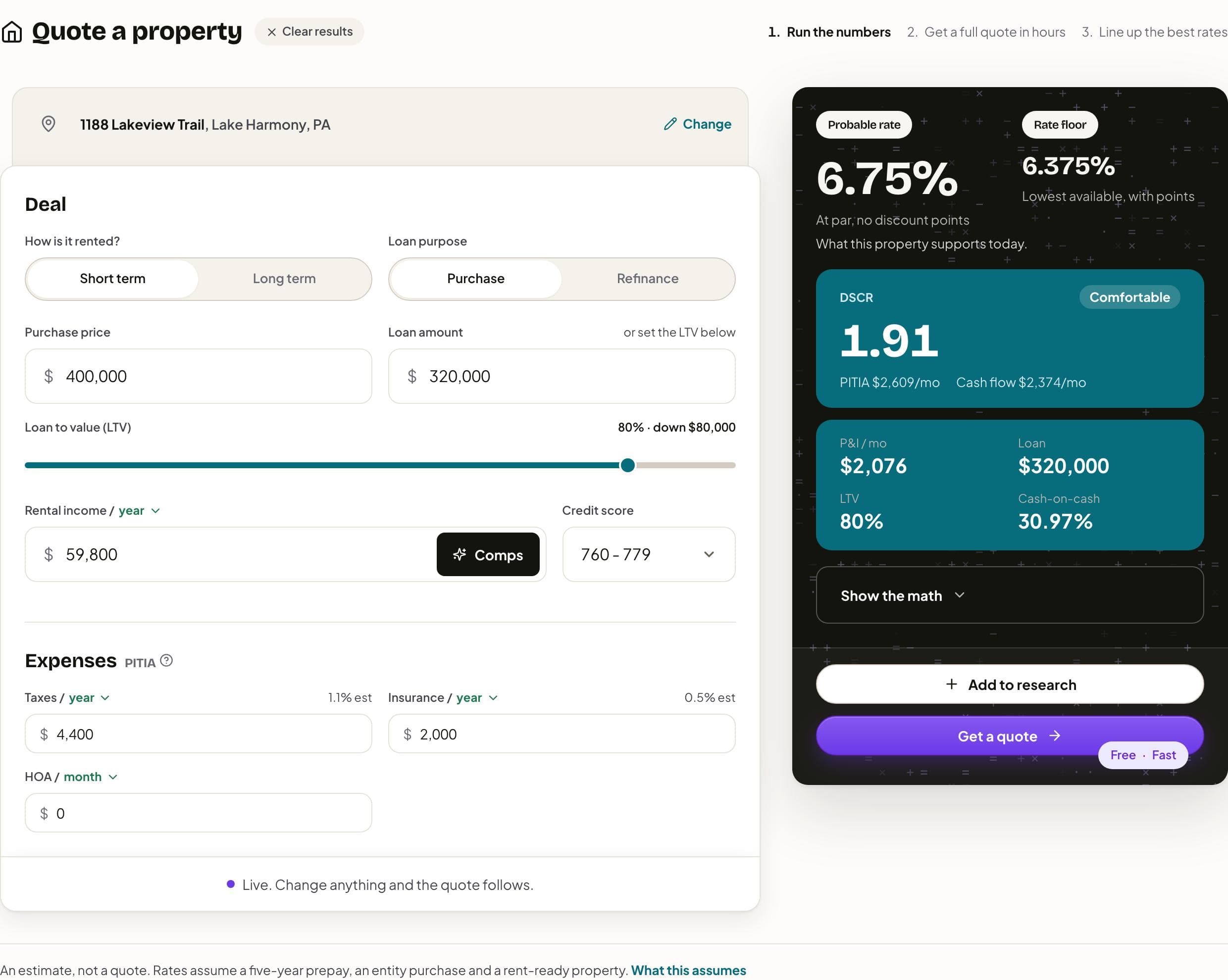
The card on the right fills in once you press Run the numbers, and from then on it reads "Live. Change anything and the quote follows."
- Probable rate, the large figure, is the best rate at par, with no discount points.
- Rate floor, the smaller one beside it, is the lowest rate available on the file, bought down with points.
- When the answer carries no floor, the card shows a Loan rate range from low to high instead. The line under the rate says what the property supports today, or why there is no rate.
- The DSCR tile is the rent over the full monthly payment at the probable rate, with a label: Comfortable, Clears 1.00 or Below 1.00. Under it are PITIA and the cash flow, a month each.
- Beside it: P&I / mo, Loan, LTV and Cash-on-cash.
Cash flow and cash-on-cash are worked on the same basis as the DSCR: the rent less PITIA, before management, cleaning and other operating costs. That is a lender's view of the property, not your profit, so read what PITIA includes and run your own operating costs before you rely on the cash flow.
Show the math opens the working. It names the rate the payment and DSCR use, then the fixed rate over 30 years that lenders test coverage at, with PITIA at that test rate, so you can see both versions of the payment side by side. It lists the taxes, insurance and HOA, with an asterisk on any figure that was assumed rather than taken from the property. Where it applies, What to watch for on this file lists the parts of the deal a person decides. Export CSV downloads your inputs and every figure. For the ratio itself, see how lenders calculate DSCR.
Under the calculator, What this assumes opens the conditions the rates take for granted, such as the prepayment penalty, an LLC or corporation as the borrower, and a rent-ready property. A real rate moves with credit, the appraisal and reserves, which DSCR loan rates explains.
From a quick quote to a full quote
Get a quote sits under the answer, below Add to research, and it turns on once there is a rate. What it does depends on whether you are signed in.
- Signed in, it saves the quote to your account, puts the property on your research board, and opens the quote's questions in GoDoor.
- Signed out, it saves the quote and opens the sign-up page. GoDoor is open by invitation while it is in early access, so that page lets you log in if you have an account, and offers Get early access if you do not. Log in in the same browser and GoDoor brings the quote over and opens its questions.
The questions are short, and most are already answered from your numbers: finish your quote walks through them. Add to research works the same way: signed in, it adds the property to your research board; signed out, it opens the sign-up page.
Without an account, the calculator prices one address, as often as you change the numbers. Ask it about a second address and it opens Make a free account to keep going, with Log in and Sign up free. During early access, signing up is by invitation, as above.
Under the calculator, Talk to our experts opens a shelf where you can book a call (Meet) or write to the team (Email) without an account.
Frequently asked questions
Is the quick quote free, and do I need an account?
It is free and needs no account. Without one you can price one address as many times as you like, changing the loan, the rent or the expenses. A second address asks you to log in or make an account, and while GoDoor is in early access new accounts are by invitation. The page also remembers your last run in this browser; Clear results beside the title empties it.
Is the rate on the card a quote I can lock?
No. It is an estimate from current pricing and the numbers you entered, not a quote and not a commitment to lend. It moves with your credit, the appraisal, reserves and everything else an underwriter reads that the form does not ask. Get a quote sends the deal to a broker, who prices the real file and writes it up as a term sheet.
What is the difference between the probable rate and the rate floor?
The probable rate is the best rate on the file at par: what you would pay without buying the rate down. The rate floor is the lowest rate any lender would write on the file, and reaching it costs points at closing. The payment, DSCR and cash flow on the card all use the probable rate, so they show the deal before any buydown.
Where does the rental income come from?
From you, or from Comps. Type the rent you expect, a month or a year, or press Comps to fill the field from nearby rentals: short-term rentals for a short-term property, a rent estimate from long-term listings for a long-term one. The figure stays yours to change, and the quote re-prices when you do.
What happens to my numbers when I press Get a quote?
GoDoor saves the quote with everything you entered. Signed in, it opens the quote's questions in your account at once. Signed out, it opens the sign-up page; log in in the same browser and the quote comes across. Most of the questions are already answered from your numbers, so finishing takes a few minutes.
General education, not financial, tax or legal advice. Figures are examples: rates, rules and programs change, and every lender sets its own. Last checked November 5, 2026. How we research these guides.