Finish your quote is where a quick quote becomes a quote request a broker can price. It is the quote's own page inside GoDoor: a short questionnaire in four sections, with everything your numbers already said filled in. You check those answers, add the rest, pick how you want to be reached, and submit.
It needs a GoDoor account. GoDoor is open by invitation while it is in early access, so if you do not have one yet, the sign-up page offers Get early access. The quick quote itself needs no account.
How a quote gets here
- From the quick quote. Press Get a quote under the answer. Signed in, this page opens at once. Signed out, the sign-up page comes next: log in there, in the same browser, and GoDoor brings the quote over and opens it here. Get a quick quote covers that first part.
- From the rent or value calculator. Their Get a quote works the same way. The rent calculator asks for a purchase price first when the listing has none.
- From inside GoDoor. On 2. Quotes, press New quote, choose the property and press Next, then press Start quote. The new quote opens straight into its questions.
- Back to one you started. Open its row on 2. Quotes. On the quote's overview, the Your quote card has Finish your quote to open this page.
The page at a glance
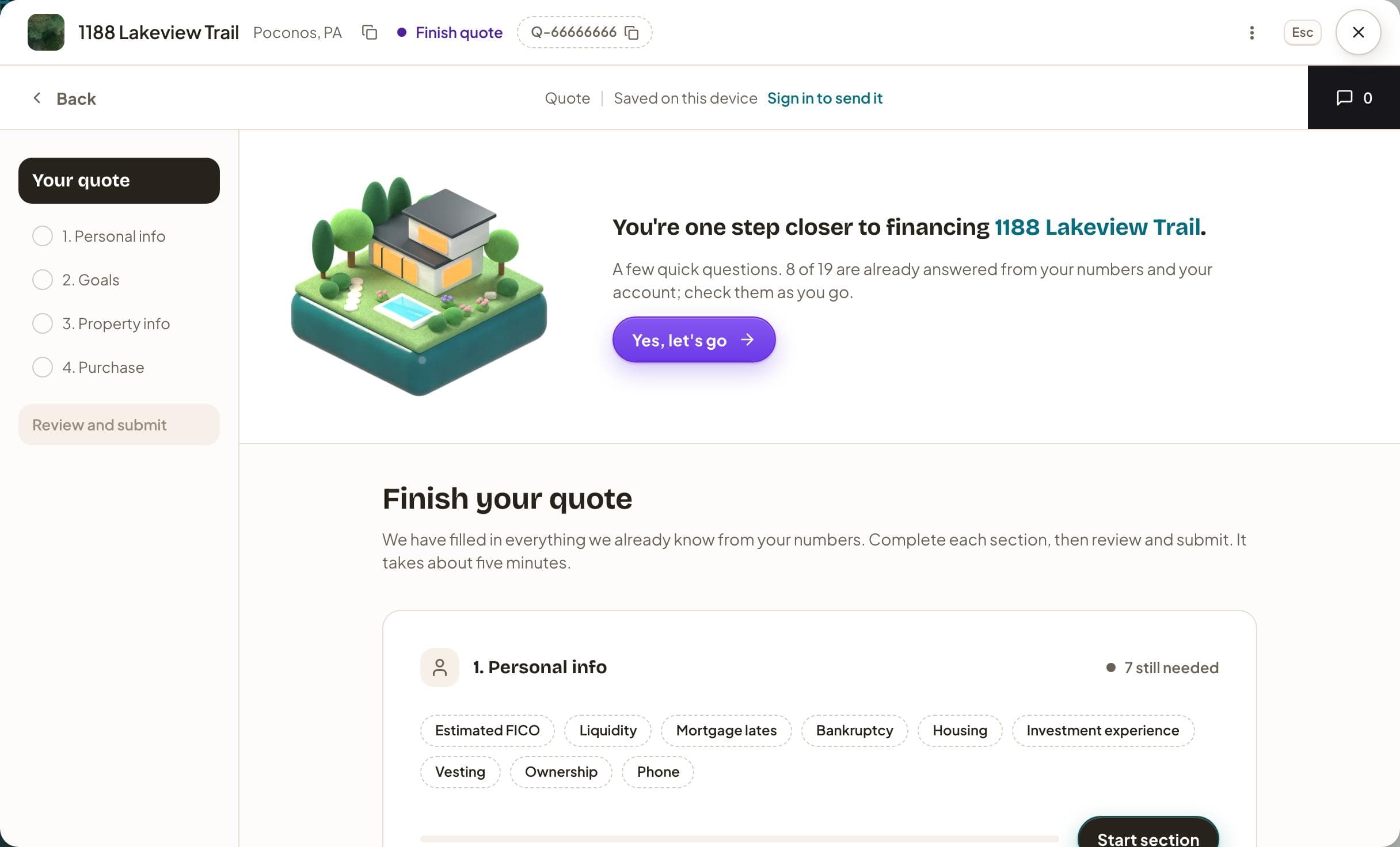
The top bar names the property, where the quote stands (Finish quote until you submit) and the quote's ID, which copies when you press it. The menu beside Esc holds Archive, and Delete until you submit. Under it, Back returns to the quote's overview, the middle of the row says when your answers are saving, and the black tab at the right opens Messages, your conversation with GoDoor about this quote.
The rail on the left lists the page: Your quote, the four sections numbered in order (each gets a check once it is complete), and Review and submit at the foot. The middle of the page, headed Finish your quote, holds a card for each section:
- the section's questions as pills, solid where an answer is in and dashed where one is still to do;
- where it stands, Complete or how many answers are still needed;
- a progress bar and one button: Start section, Resume section, or Review once it is complete.
On a new quote, a welcome card sits above the first section and says how many answers are already in from your numbers and your account, with Yes, let's go.
Finish your quote, step by step
- On a new quote, press Yes, let's go on the welcome card. It opens the first section with work left, at its first open question.
- Answer the question in front of you. Choosing an option moves you on to the next open question by itself.
- For a typed answer, press Next in the field, or the Enter key.
- At the foot of the section, press Next section (on the last section it reads Review and submit).
- Work through the sections until every card reads Complete.
- Press Review and submit in the rail. It shows Ready once every section is done.
- Check your answers. Press any one to change it in place, then press Done.
- Under Preferred way to reach you, choose Text, Call or Email.
- If you chose Call or Text, type your Phone number.
- Press Submit quote.
- When the page reads Submitted, press Return to app.
You can move around freely. Any section in the rail opens it, and All sections at the top of a section goes back to the cards. An answer marked Answered by your quote came from the numbers you priced; it is filled in, and you can still change it. A question marked Optional can stay blank. On a phone the rail is hidden, and the cards show Review and submit once every section is complete.
What each section asks
| Section | What it asks |
|---|---|
| 1. Personal info | Your estimated credit score as a range, your liquidity, mortgage lates in the last two years, any bankruptcy, where you live now, the homes and investment properties you have owned in the last three years, how you will hold title (your own name or an LLC), your share of the deal (optional) and a phone number (optional) |
| 2. Goals | What the loan is for (Buy it, Refinance it or Take cash out), how you will rent it (short, mid or long term), whether you have run a short-term rental for 12 months or more, and anything else you plan (Renovate it, Fix and flip; optional) |
| 3. Property info | The property type, bedrooms, bathrooms, square feet, acreage (optional), whether it is renting today, the projected as-is rental income, and the taxes and insurance |
| 4. Purchase | The purchase price, whether you are under contract, and how much you want to borrow, with its loan to value shown as you type |
| 4. Refinance | The estimated appraisal value, how much you want to borrow, the original purchase price, documented improvements (optional), the current loan balance and the current rate |
Some questions appear only when an earlier answer calls for them: owning a home in the last three years only if you do not own one now, how many investment properties only if you have owned one, and the short-term rental history only on a short-term rental. The fourth section follows What is the loan for? in Goals: Buy it gives Purchase, either refinance answer gives Refinance.
The taxes and insurance in Property info are carried over from your quick quote, which may have estimated them. Their help line asks you to correct them if you have the real figures, so use your tax bill or an insurance quote if you have one. For how lenders read these answers, see DSCR loan requirements; for the vesting question, buying a rental in an LLC.
At the end of Personal info, a ticked box reads Save to my Investor profile. Left ticked, your person-level answers, such as the credit band, liquidity and phone, go onto your profile, so the next quote starts with them. On later quotes it reads Save changes to my Investor profile and shows only when you change one. If your account has more than one borrowing profile, such as one for an LLC, the cards start with Borrowing as so you can pick which one this quote is for.
After you submit
The page reads Sending your quote for a moment, then Submitted. The screen says a broker reviews it, usually within one business day, that your term sheet appears on this quote and under Notifications, and that any questions come to its Messages.
- The quote's status changes from Finish quote to Under review.
- The answers are read only from now on. The page shows Your answers with the date you submitted, and the rail reads Submitted on that date. To change anything, write to the broker in Messages.
- If the quote does not arrive, the page reads Your quote has not reached us, with Retry. If you were signed out, it offers Sign in instead, and sends the quote once you are back.
Next comes the term sheet, where a lender's offer is written out and you choose a rate. The DSCR loan process shows where that sits in the whole loan.
Frequently asked questions
Do I have to finish my quote in one sitting?
No. Every answer saves as you type, and the top bar says when it is saving. Press Back to leave, and the quote waits for you on 2. Quotes with Finish your quote on its overview. Answers started on a phone come back on a laptop, because they are saved to the quote itself rather than to the browser.
Why are some answers already filled in?
GoDoor fills in what it already knows: the price, the loan, the rent and how the property rents from the numbers you priced, and your credit band, liquidity and phone if they are on your profile. Those carry the Answered by your quote mark or show as solid pills on the cards. Each one stays yours to change before you submit.
Does answering the credit question pull my credit?
No. The question asks for your estimated score as a range, and its help line says it sets the rate band, not a hard pull. Pick the band your most recent score falls in; a range is all the question needs.
Can I change an answer after I submit?
Not on the page itself. A submitted quote shows your answers read only, so the broker works from exactly what you sent. To change something, write to the broker in the quote's Messages, the black tab at the right of the page, and say which answer is wrong.
Do I need an account to finish a quote?
Yes. The quick quote and the other free tools need no account, but finishing a quote happens inside GoDoor, which is open by invitation while it is in early access. Without an invitation, use Get early access on the sign-up page. If you priced a quote first, log in in the same browser and it comes across.
General education, not financial, tax or legal advice. Figures are examples: rates, rules and programs change, and every lender sets its own. Last checked November 5, 2026. How we research these guides.