Once your application is in, your deal goes to the lender for underwriting and then to closing. In GoDoor these are the last two steps of your deal's journey, and both are your broker's to work: the pages outline how each stage usually goes, and your broker brings you anything the lender asks for.
You follow along on the deal's overview and talk to the team in its Messages. GoDoor's app is open by invitation while it is in early access, so this guide is for people who already have an account and a deal.
The journey on your deal's overview
Open 3. Deals in the sidebar and choose the deal's row. The board already says a little: the Status in words, who it is Waiting on, a Messages count that is red while something is unread, and a Progress bar.
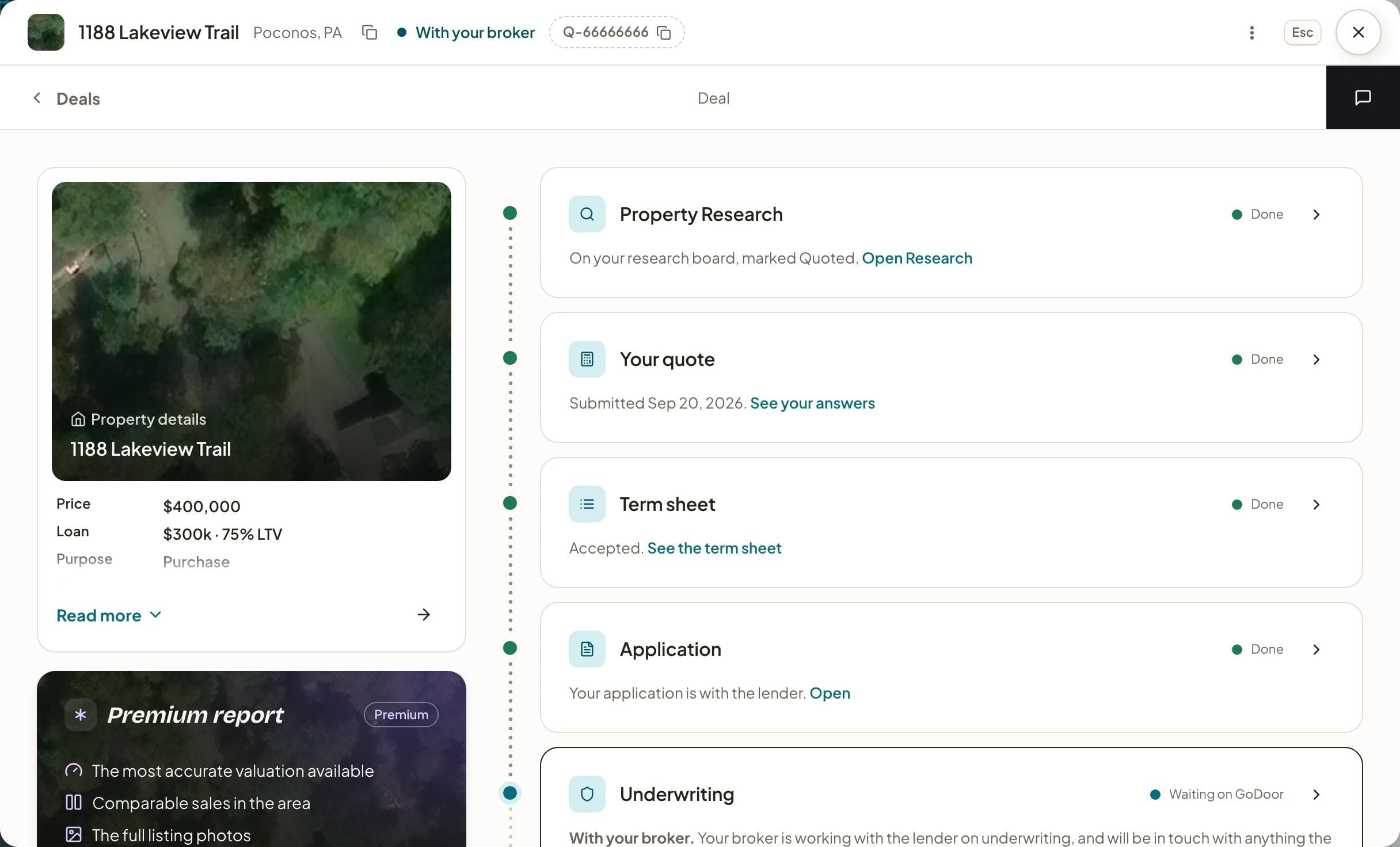
The deal opens on its overview. On the left is the property: its photo and figures (press Read more for all of them), the Premium report card and the Your files card. On the right is the journey, six cards on a dotted line: Property Research, Your quote, Term sheet, Application, Underwriting and Closing.
Each card says where it stands at its top right: Done, Waiting on you, Waiting on GoDoor or Ahead. Done cards say what happened, such as the term sheet you accepted, with a link to see it again. The current card has the black edge and says what is happening now. The whole card opens its page.
Underwriting
While the lender underwrites your loan, the Underwriting card reads With your broker, with a line saying your broker is working with the lender and will be in touch with anything it asks for, and a See how it works link. The card, or the link, opens the Underwriting page.
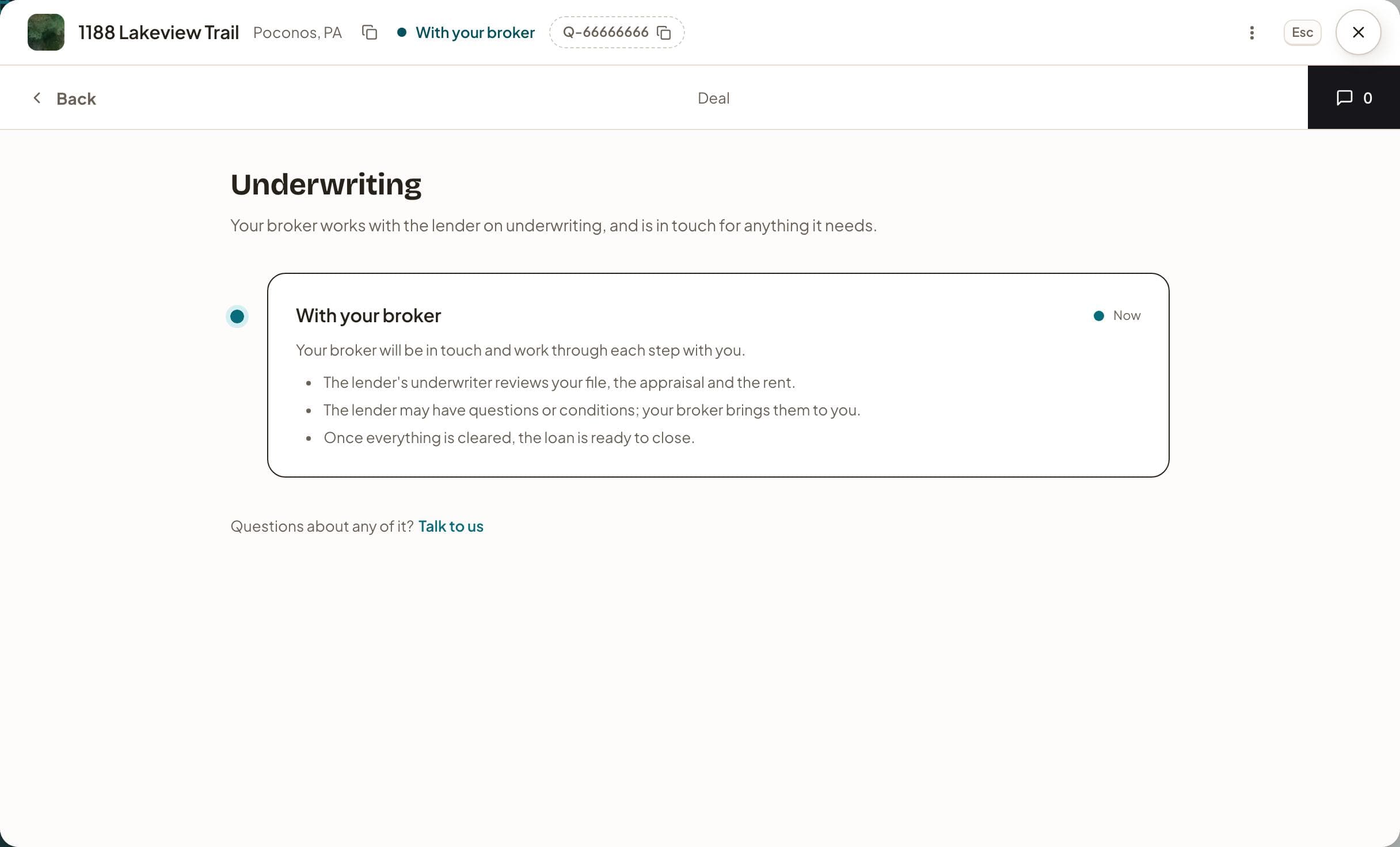
The page has one step, With your broker, marked Now while your deal is in this stage. Its outline is how underwriting usually goes: the lender's underwriter reviews your file, the appraisal and the rent; the lender may have questions or conditions, which your broker brings to you; once everything is cleared, the loan is ready to close.
Lenders usually approve a loan subject to conditions, and answering them all at once keeps a closing on time (the DSCR loan process explains them, and how rental appraisals work covers the appraisal). In GoDoor there is no upload slot for conditions on this page: your broker tells you what the lender needs, and you send it in Messages, or add the files to the deal's Your files from the overview.
Closing
When underwriting is done, its card reads "Underwriting is done." and the Closing card becomes the current one. The Closing page has two steps. With your broker outlines how closing usually goes: the closing documents are prepared; you sign, and the loan funds; the deal is recorded. Your broker tells you when to sign.
The last step is Closed. Once your broker marks the deal closed, the bar at the top reads Closed and the journey's Closing card says your loan is closed. In coastal and wildfire states the insurance binder is often the slowest condition, so short-term rental insurance is worth reading early if the property is a vacation rental.
Messages with the GoDoor team
Every page of the deal has the messages tab at the far right of the bar under the address: a black block with a speech bubble and the number of messages. A red dot on it means an answer from you is waiting. Talk to us at the foot of the Application, Underwriting and Closing pages opens the same thread.
- Press the messages tab. The shelf slides in over the page, headed Messages.
- Type in the field that reads Write to GoDoor.
- Press Enter, or the send button beside the field. Shift and Enter starts a new line.
- To send a file, press the paperclip and pick it; dropping a file on the shelf or pasting a screenshot works too.
- Close the shelf with the arrow in its head, a click on the page behind it, or Escape.
It is one conversation with the team: the shelf shows every message you have exchanged with GoDoor, oldest first, and a divider with the time and a property's address says where each part was written ("Main" for your general chat). When your broker moves the deal, a line in the thread says so, in the same words as the page. A message can carry up to six files of up to 25 MB each.
A file in the thread has a menu: Save to property files keeps a copy in this deal's Your files, Save to profile files keeps one on your Investor page, and Delete for everyone removes a file you sent. A message of your own has Delete for everyone too. If a message does not go, it says so with Try again, and a half-written message is still there when you open the shelf again.
Emails and the bell
GoDoor emails you when your broker moves your deal to a new step you can see, issues a term sheet, or sends you a message. In your account, Notifications has a switch for all of them, Emails about my deals, and under it Status updates, Term sheets and Messages. Private emails, off by default, makes every one of them say only that something new is waiting, never what it is or which deal.
The bell at the top right of every page lists the same news whatever your email switches say, under All, Your tasks and Updates. Opening a line goes to the deal it is about.
Frequently asked questions
Do I have to do anything in GoDoor during underwriting?
Nothing is asked of you on the page itself: Underwriting reads With your broker, and the work is your broker's and the lender's. Watch Messages and your email. When the lender has a question or a condition, your broker tells you what is needed, and you answer in Messages or add the files to the deal's Your files.
Can I move my deal to the next step myself?
No. Only your broker moves a deal, and your pages show where it stands in words. When your broker moves it to a step you can see, the overview changes, a line appears in Messages, and you get an email if Status updates is on in your Notifications.
Why do I see messages about my other properties in this deal?
Messages is one conversation per person. The shelf shows every message you have exchanged with the GoDoor team, and a divider names the property each part was written about, or Main for your general chat. A message you send from this deal's shelf is filed with this deal.
How long do underwriting and closing take?
GoDoor does not show a date for either stage; your broker tells you where things stand and when to sign. The usual ranges, and what slows a loan down, are in the DSCR loan process guide.
General education, not financial, tax or legal advice. Figures are examples: rates, rules and programs change, and every lender sets its own. Last checked November 5, 2026. How we research these guides.